Cybersecurity Awareness Month is nearly halfway through, and for many organizations that means the phishing test has gone out. Someone clicked, someone reported it, and the results are in a slide for leadership. That test is worth running. But it only answers one question: what does your team do when a suspicious email arrives?
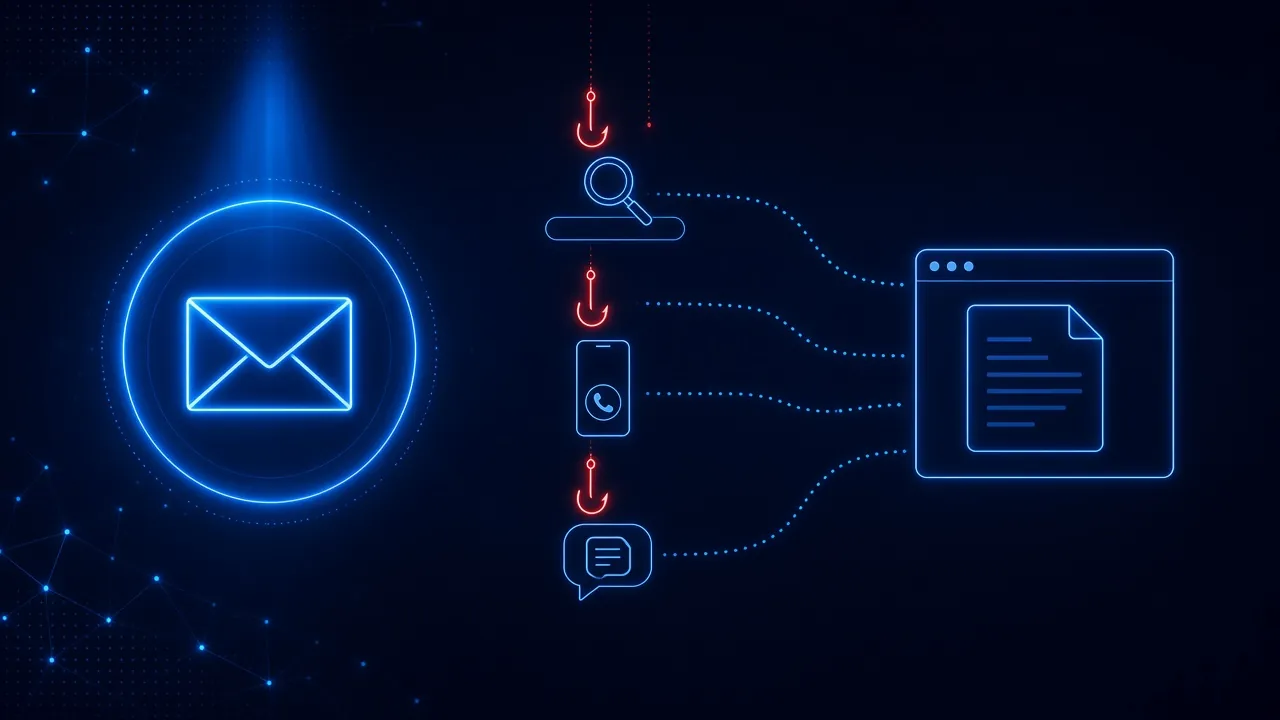
Think about the rest of an ordinary workday. An employee searches for a tool they need. A call comes in from someone in IT. A coworker drops a link in chat. None of those moments happen in the inbox, and more and more attacks are built around them. This October is a good time to ask a simple question about your awareness program: are your people practicing the situations they actually run into?
Is Your Security Awareness Program Only Testing the Inbox?
For most organizations, the honest answer is yes. Phishing simulations started as email exercises, and most programs still measure email clicks and email reports. Attackers have noticed. Verizon’s 2026 Data Breach Investigations Report (https://www.verizon.com/business/resources/reports/dbir/) found that 41 percent of social engineering breaches involved channels other than just email, and that simulated voice and text attacks were clicked about 40 percent more often than simulated email.
Collaboration tools are moving fastest. Palo Alto Networks’ Unit 42 reported in June (https://unit42.paloaltonetworks.com/microsoft-teams-phishing/) that phishing alerts from collaboration tools made up 42 percent of all phishing alerts it saw in the first four months of 2026, up from 30 percent in the four months before. Its explanation is the uncomfortable part: awareness training and phishing simulations “have conditioned users to be cautious with email, but far less so with collaboration tools.”
In other words, the training is working where it is aimed, and attackers are going around it. Here are three short scenarios that test the rest of the workday. Each one comes from attacks documented this year. Read them with your team and ask the same question each time: would we have paused, and where?
Scenario 1: The Search Result
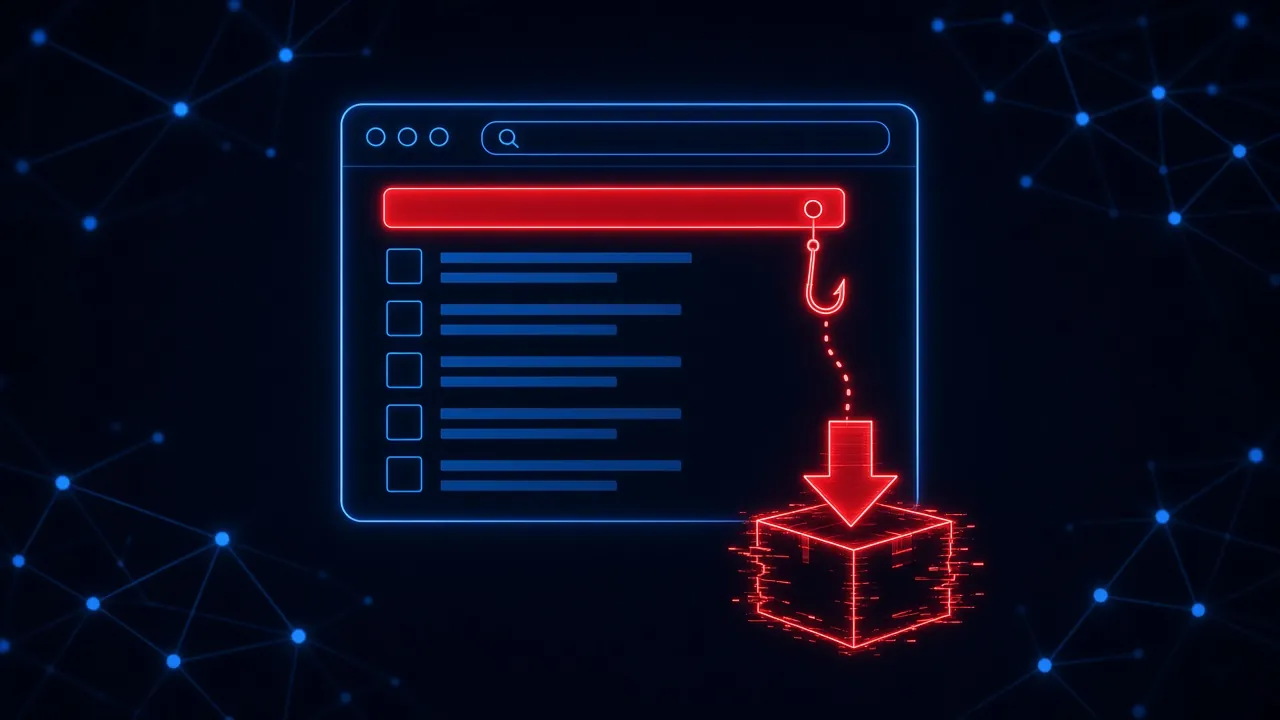
A sales manager is setting up a new laptop and needs the company’s VPN client. She searches for it, clicks the first result, and lands on a page with the vendor’s logo, product screenshots, and a big Download button. The installer runs, asks her to sign in, and then shows an error saying the installation failed. She sighs, goes to the vendor’s site, installs it again, and it works.
What makes it believable
She went looking for it. Nobody sent her anything suspicious, so none of the instincts trained by email phishing kick in. That exact pattern is a real campaign: in January, Microsoft found a group it tracks as Storm-2561 pushing fake VPN download pages to the top of search results (https://www.microsoft.com/en-us/security/blog/2026/03/12/storm-2561-uses-seo-poisoning-to-distribute-fake-vpn-clients-for-credential-theft/) for searches like “Pulse Secure client.” The fake installer captured the credentials typed into it, then showed an error and sent the user to the real vendor site. When the real software worked, there was nothing left to make anyone suspicious.
It is not limited to VPNs. In May, Microsoft described another campaign (https://www.microsoft.com/en-us/security/blog/2026/05/26/poisoned-search-results-gpu-mining-cryptojacking-campaign-abusing-screenconnect-microsoft-net-utilities/) with more than 150 lookalike download sites for common utilities, and it saw signs that some users were pointed to them by AI chatbots answering download questions. And Push Security says 4 in 5 of the ClickFix attacks it detects (https://pushsecurity.com/blog/adception-malvertising-another-search-engines-search-results) reach victims through search engines. Those are the pages that talk people into pasting a command to “fix” or install something, which we covered in our ClickFix explainer.
Where the employee should pause
At the Download button, before anything runs. Two quick checks catch most of these: is this the vendor’s real domain, and is the result a sponsored ad? A better habit is to skip search entirely for work software and use the source IT has already approved. And if an installer fails right after asking for a password, that is not a glitch to work around. It is worth a message to IT.
How the organization can protect that decision
- Publish one place to get approved software, such as a company portal or software center, and tell people about it every time a new tool rolls out.
- Limit who can install software, so a single bad download cannot run with full rights.
- Put protection in the browser that recognizes malicious search ads and lookalike download domains at the moment of the click, since no email filter ever sees this attack.
- Practice it. A simulated search ad or fake download page teaches the domain check far better than a slide about it.
Scenario 2: The Support Call
An accountant’s inbox suddenly fills with hundreds of junk emails. A few minutes later, a Teams call comes in from “IT Service Desk.” The caller is calm and helpful. He says they have spotted the spam problem and need to apply a filter update. He reads out a web address, asks her to sign in so he can verify her account, and then asks her to open Quick Assist so he can finish the fix.
What makes it believable
The help arrives exactly when she needs it, and it arrives inside a work tool she trusts. Microsoft described this playbook in April: attackers message and call employees on Teams from accounts outside the company while posing as the help desk (https://www.microsoft.com/en-us/security/blog/2026/04/18/crosstenant-helpdesk-impersonation-data-exfiltration-human-operated-intrusion-playbook/), with lures like “Microsoft Security Update,” “Spam Filter Update,” and “Account Verification.” Microsoft notes that because the contact happens in a collaboration platform rather than email, it can bypass the skepticism people have learned to apply to unsolicited messages.
The calls are short and persistent. Sophos tracked one group that targeted dozens of North American organizations (https://www.sophos.com/en-us/blog/chaos-in-teams-vishing) between February and June, with most calls lasting two to two and a half minutes. In one case investigated by Microsoft Incident Response (https://cdn-dynmedia-1.microsoft.com/is/content/microsoftcorp/microsoft/bade/documents/products-and-services/en-us/security/cyberattacks-series-report-q3-final.pdf), the attacker failed with two employees and succeeded with the third. Attackers do not need everyone to fall for it. They need one person. We have written more about how these calls hand victims off to the browser, and a similar approach was behind the phone attacks on Harvard and Princeton.
Where the employee should pause
The moment the caller asks her to go to a website and sign in, approve a prompt, or open a remote access tool. Real IT teams rarely need any of those during an unexpected call. The safe move costs a minute: end the call and contact the help desk through a number or ticketing system she already knows. A genuine technician will not mind.
How the organization can protect that decision
- Tell employees exactly how IT will and will not contact them, and what IT will never ask for. Microsoft also suggests a verbal code phrase between the help desk and staff that an attacker would not know.
- Restrict who outside the company can start a Teams chat or call. Unit 42 recommends allowing only the external domains you actually work with.
- Limit remote access tools like Quick Assist to the people and devices that need them.
- Protect the browser, because the website the caller reads out is where the password is actually stolen.
Scenario 3: The Shared Document
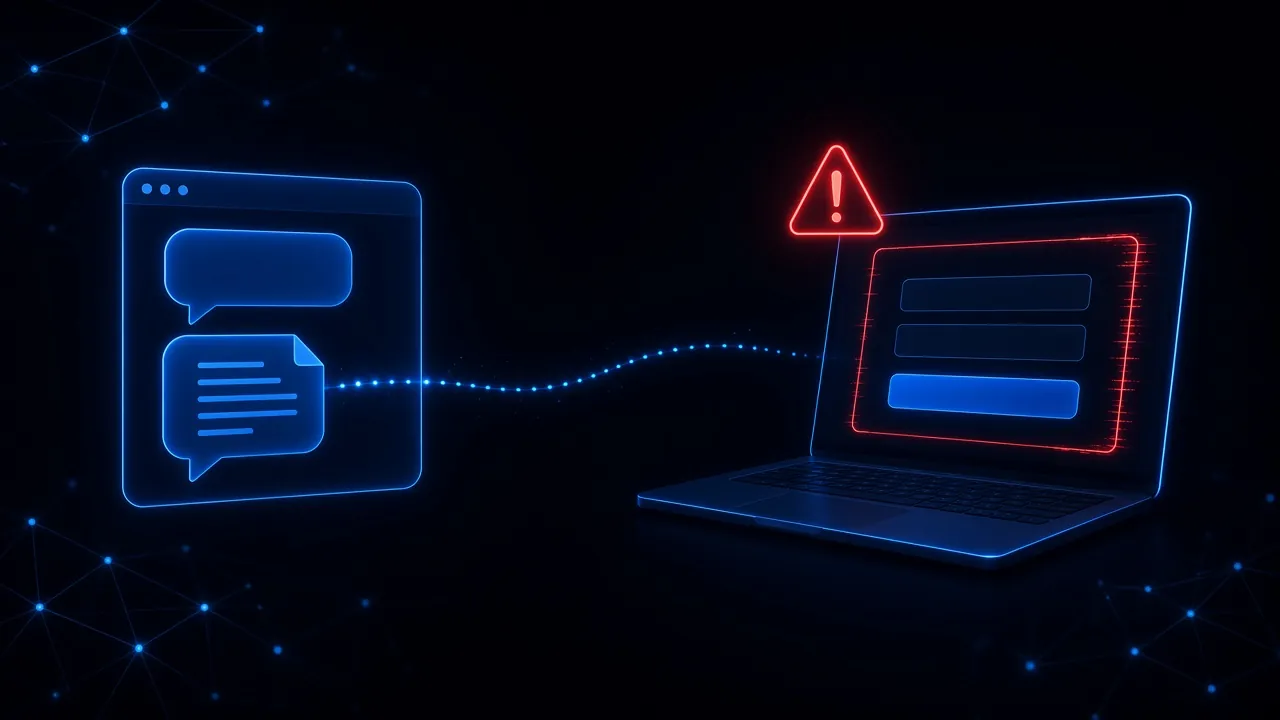
A project coordinator gets a chat message from a contact at a partner company: “Here is the updated statement of work, can you take a look before our call?” The link opens a real file-sharing page, then a quick “verify you are human” check, then a Microsoft sign-in screen that looks exactly right. She enters her password. It says the password is incorrect, so she types it again. Then the page redirects to Office, and she assumes the link was broken.
What makes it believable
Everything about it is normal. Documents get shared in chat all day, the sender is someone she knows, and the first page is a real file-sharing service. Unit 42 has documented attackers using compromised accounts to send Teams messages with links to pages that mimic Microsoft’s sign-in portal, so the familiar name in chat is not proof of anything.
The pages behind these links are built to look legitimate. ANY.RUN researchers documented a phishing kit called Kratos (https://any.run/cybersecurity-blog/kratos-phaas-account-takeover/) this summer that routes victims through real SharePoint or OneDrive pages, adds a Cloudflare “verify you are human” check to keep security scanners out, and then shows a convincing Microsoft sign-in page. It accepts up to three password attempts and then sends the victim on to the real Office site, so the whole thing looks like a hiccup. The CAPTCHA, which most people read as a sign of a careful site, is there to hide the page from the tools that might catch it.
Where the employee should pause
At the unexpected request. She was asked to read a document, and the page asked her to sign in again. That mismatch is the signal. Before typing a password into any page reached from a link, check the domain in the address bar. If a password manager that normally fills in her work login stays blank, treat that as a warning, not an inconvenience. And if the request feels slightly off, a quick message to the sender through a separate channel will settle it.
How the organization can protect that decision
- Move to passkeys or security keys for work accounts where you can, since a fake sign-in page cannot capture or relay them the way it can a password and a one-time code.
- Make reporting easy in chat, not just in email. Depending on your Microsoft licensing, Teams can let users report suspicious messages, and one report can protect everyone else who got the same link.
- Protect the browser, where the fake sign-in page actually loads, and step in before the password is submitted.
- Include document-share lures in your simulations, and teach people that a request to sign in again is the moment to look at the address bar.
How Do You Use These Scenarios With Your Team?
You do not need a new platform to start. Take 15 minutes in a team meeting this month:
- Read each scenario out loud. Ask people where they would have paused, if at all. Most teams find that someone has already been in a version of each one.
- Agree on three answers in writing. Where do we get work software? How does IT contact us, and how do we reach IT? How do we report a suspicious message in chat or by phone?
- Thank the people who admit they would have clicked. That honesty is the point of the exercise. As we have written before, shame does not teach, and people who are afraid of looking foolish stop reporting.
- Put the scenarios on the calendar. Revisit them in a few months with new details. Awareness fades within about six months, so one conversation in October will not carry you through the year.
If Your Awareness Program Only Tests the Inbox, What Happens Everywhere Else?
Email phishing is still common and still worth training for. But if every simulation you run is an email, your results only describe the channel that already has the most filtering in front of it. The search result, the support call, and the shared document all reach your people with no filter in between, and all three end in the same place: a page in the browser that asks for a download, a password, or access. That is where phishing protection has to reach, and it is where practice should happen too.
Use the rest of this October to find out how your team handles the rest of the workday. The answer will tell you more than another email click rate.
How SavvyShield helps: SavvyShield protects the moment these attacks actually happen. Our browser extension analyzes pages in real time and steps in when an employee reaches a malicious search ad, a lookalike download page, or a fake sign-in page, no matter whether the link came from email, chat, a search, or a phone call. Each blocked attempt comes with a short explanation of what gave it away. Realistic simulations run in the browser as well as the inbox, so your team practices the situations they actually run into, and bite-sized training keeps the lessons fresh all year. Want a quick read on your team? Try our free cyber savviness quiz.